
Guide · Post and grow · Lesson 7
Export and post to TikTok, Reels and Shorts
Save the finished video with its cover and captions, and post it where your audience is.
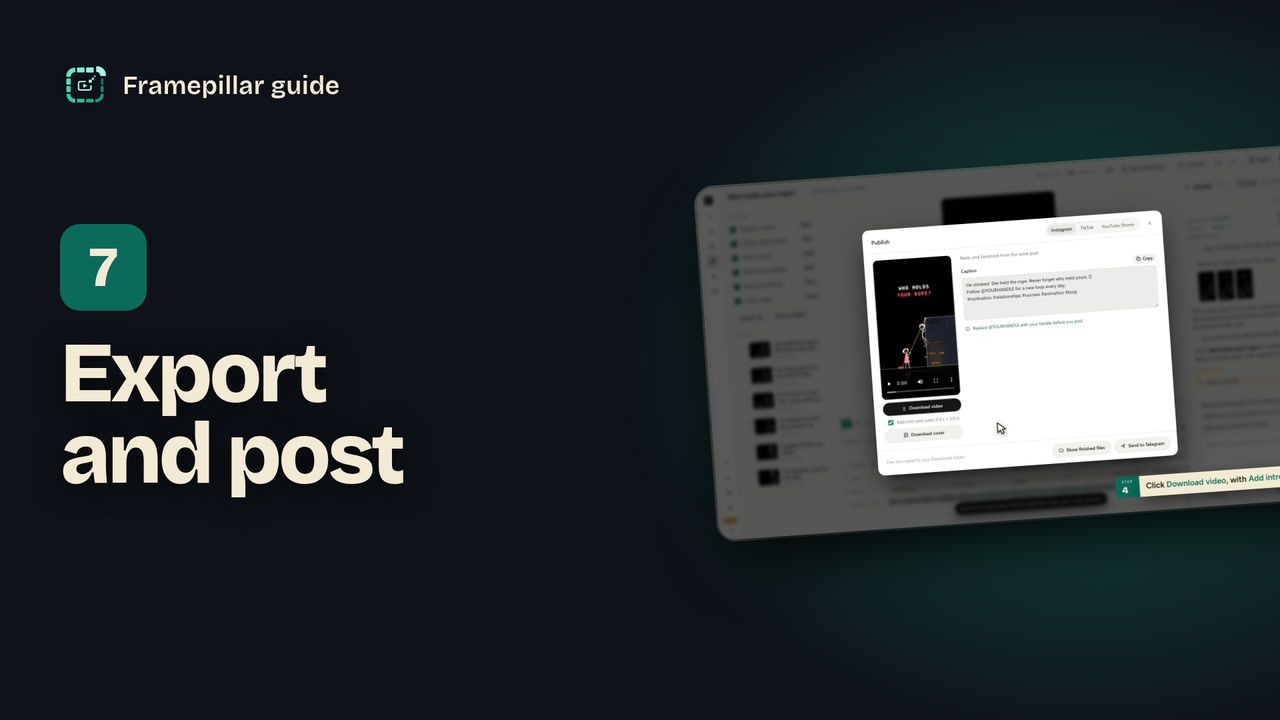
Step by step
- In the editor, open Export. Choose TikTok cut (for TikTok and YouTube Shorts), Reel cut (for Instagram and Facebook) or Cover.
- The file is copied to your Downloads folder and the folder opens. Anything not made yet says render it.
- Or click Publish and pick a tab: Instagram, TikTok or YouTube Shorts.
- Click Download video. Add intro and outro is ticked when the project has them. Untick it to leave them out. Click Download cover for TikTok.
- Click Copy next to the caption (on YouTube, the title and description) and paste it into the post.
- Replace @YOURHANDLE with your own handle, then upload the video in TikTok, Instagram or YouTube.
Every step, in pictures
Screens from the video, in order. Click one to see it full size.
-
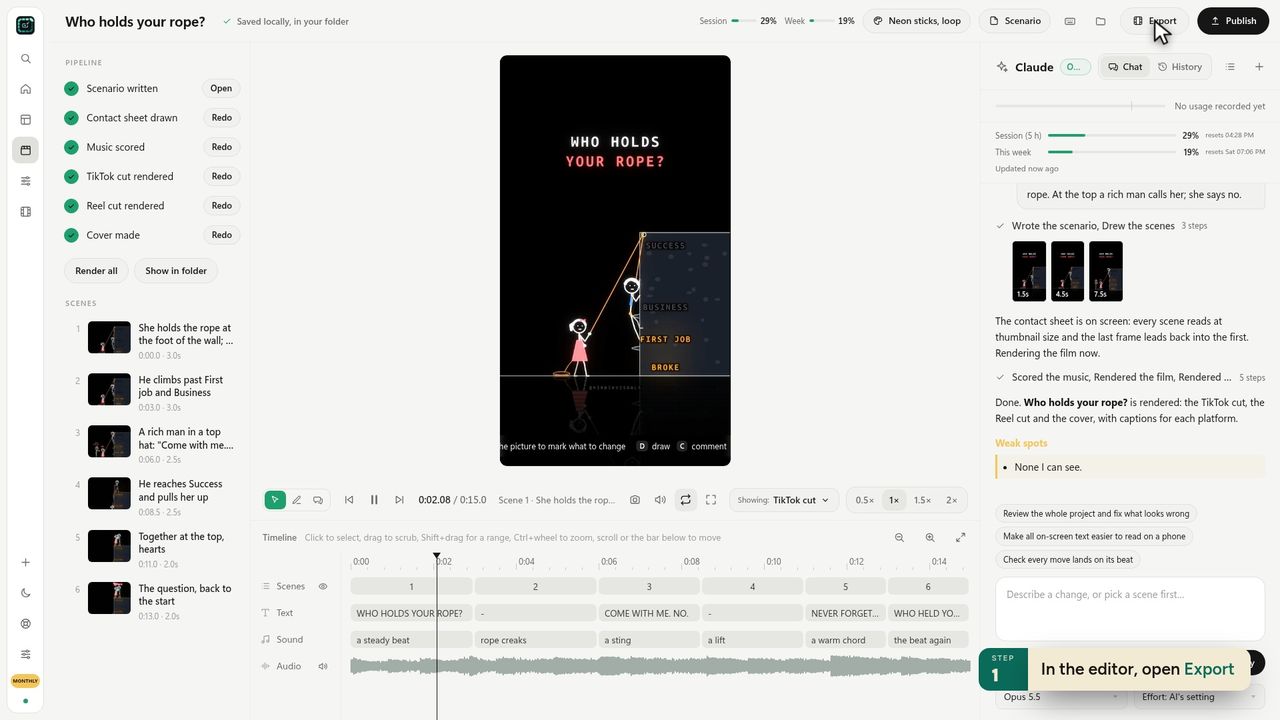
1In the editor, open Export -
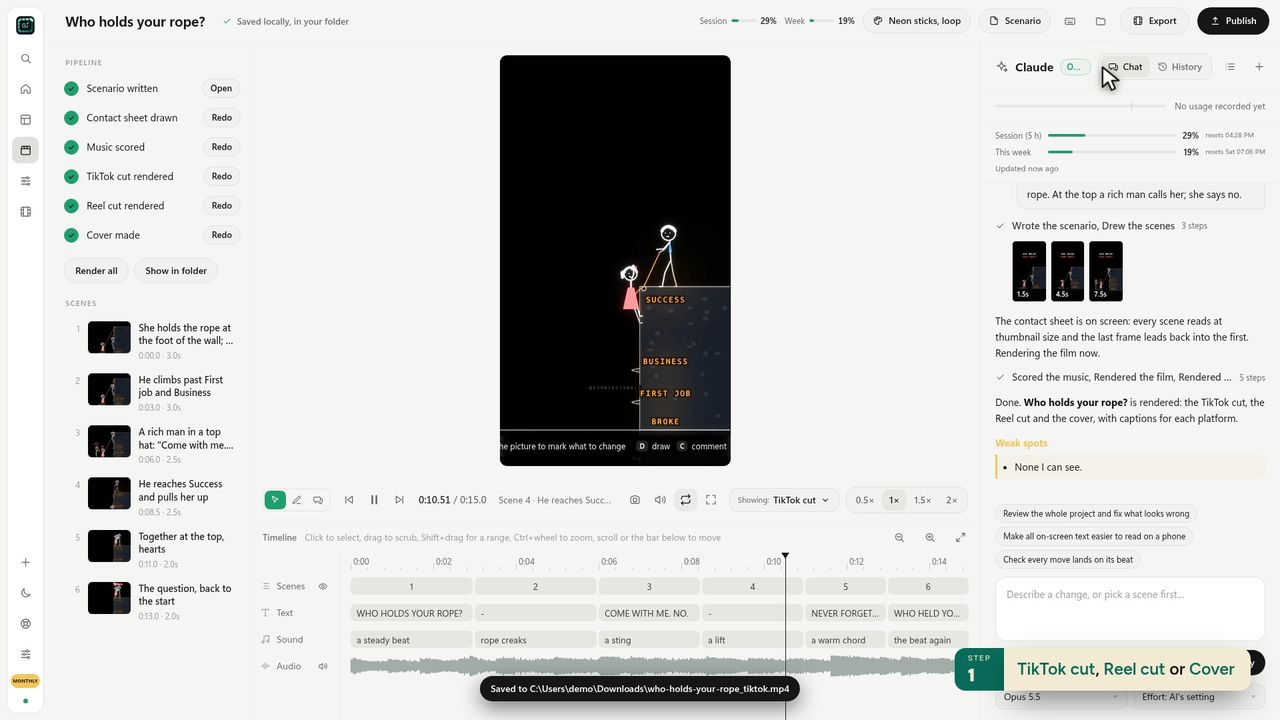
2TikTok cut, Reel cut or Cover -
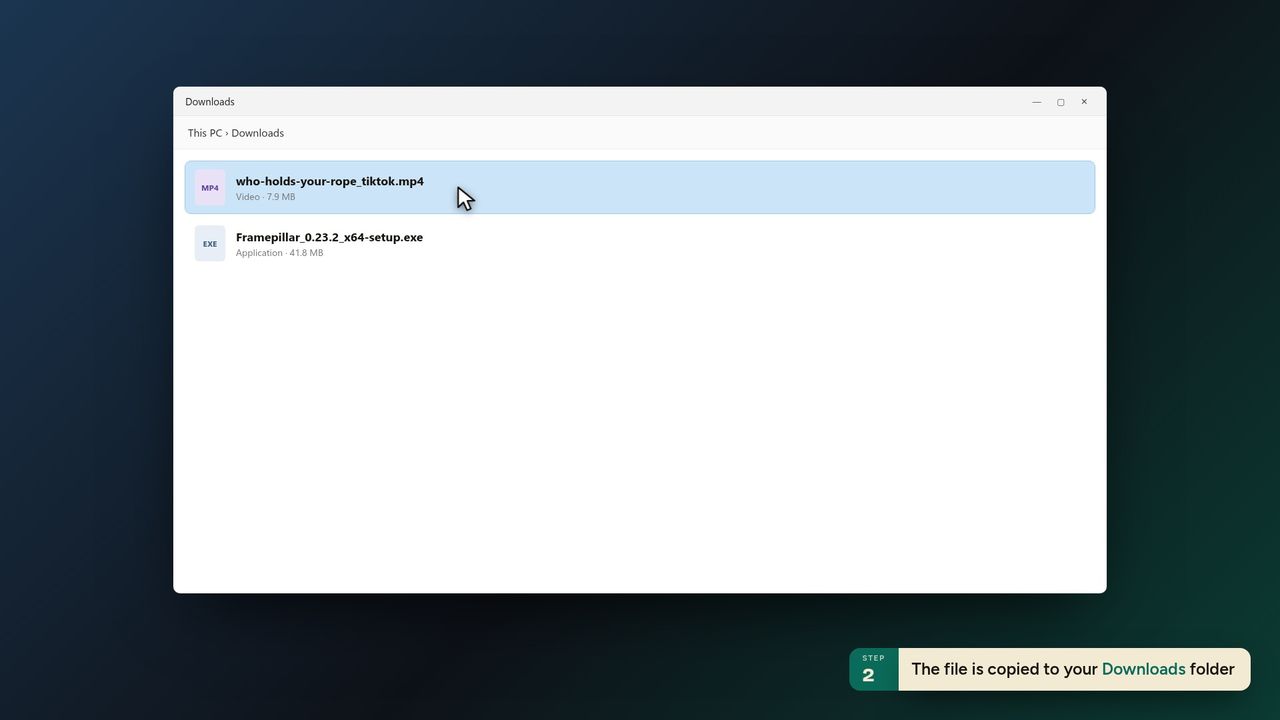
3The file is copied to your Downloads folder -
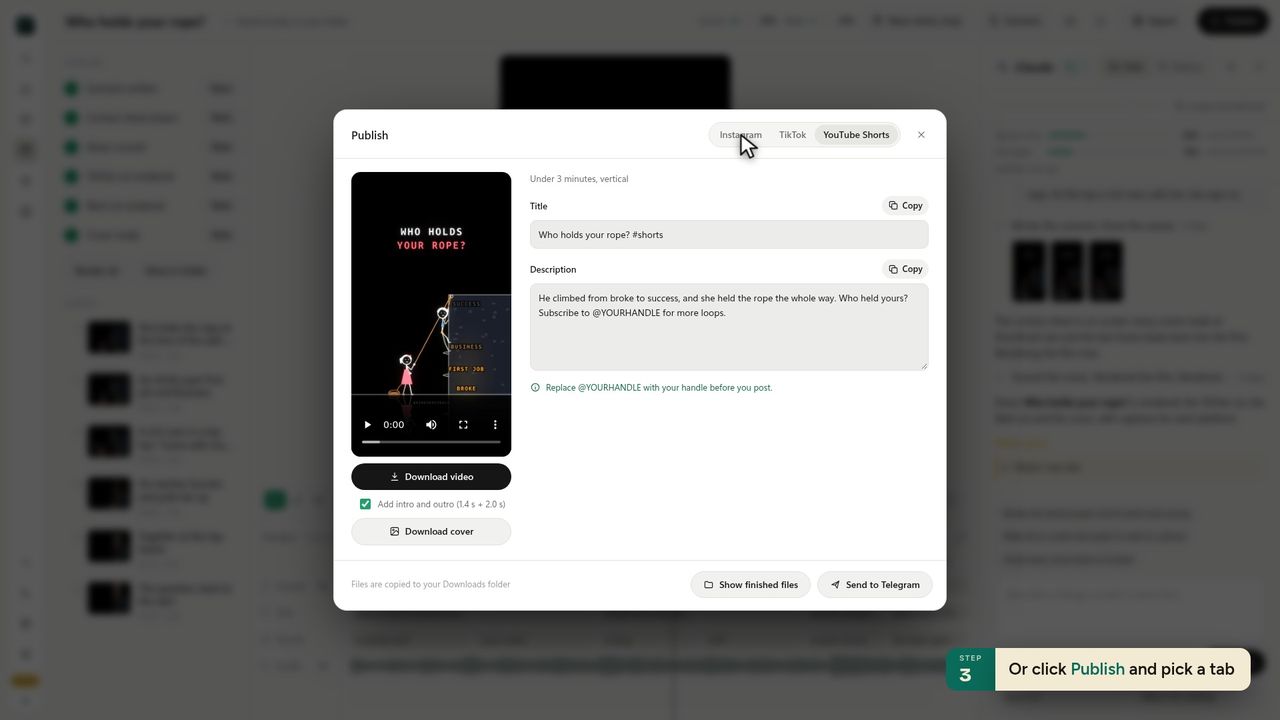
4Or click Publish and pick a tab -
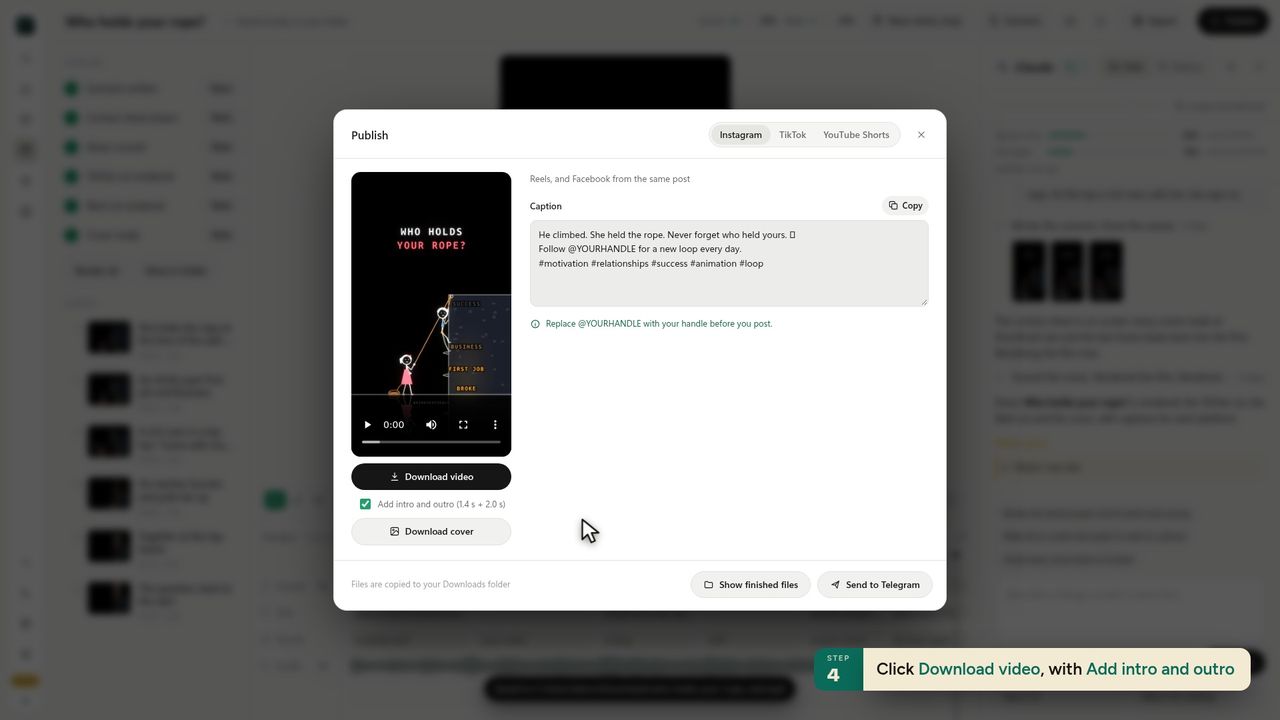
5Click Download video, with Add intro and outro -
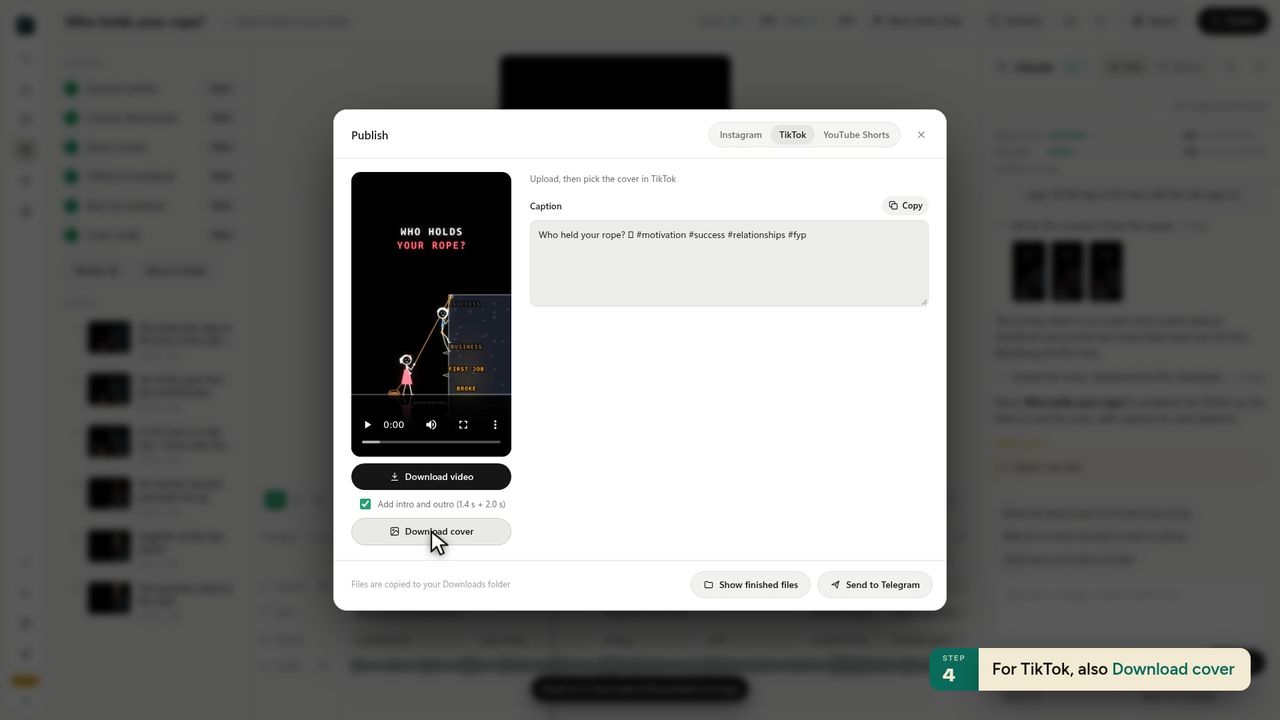
6For TikTok, also Download cover -
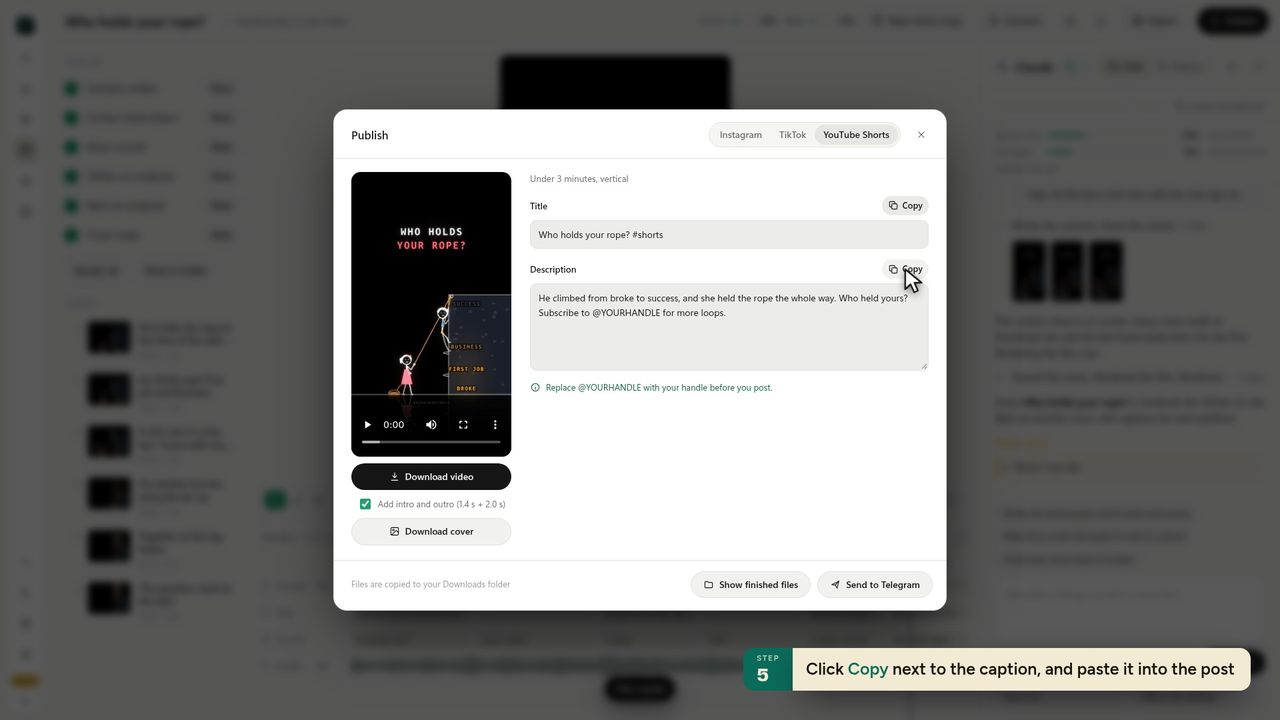
7Click Copy next to the caption, and paste it into the post -
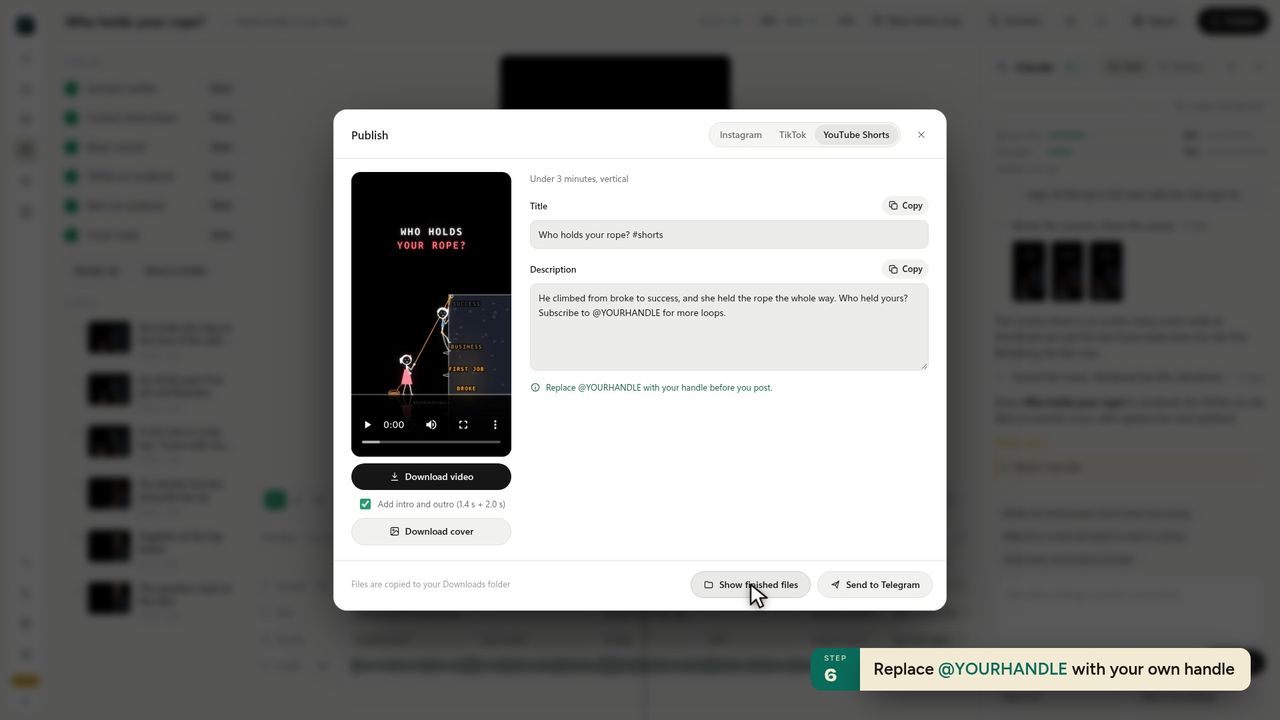
8Replace @YOURHANDLE with your own handle -
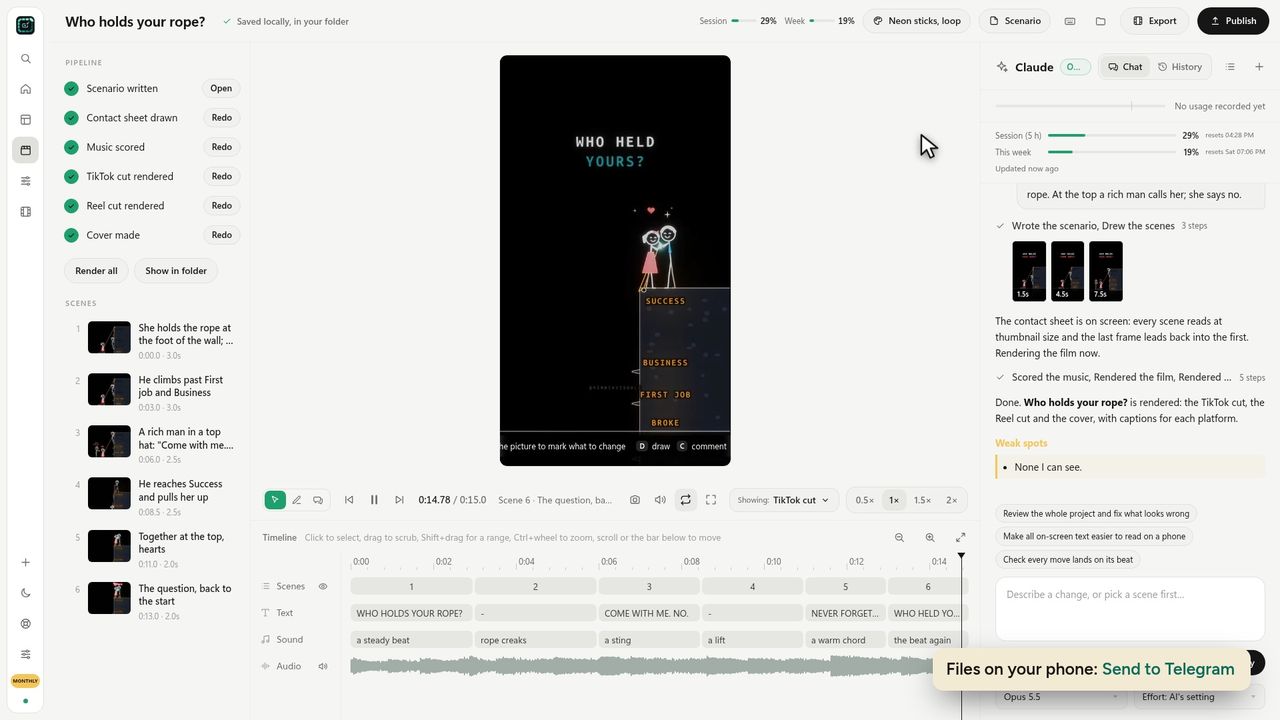
9Files on your phone: Send to Telegram -
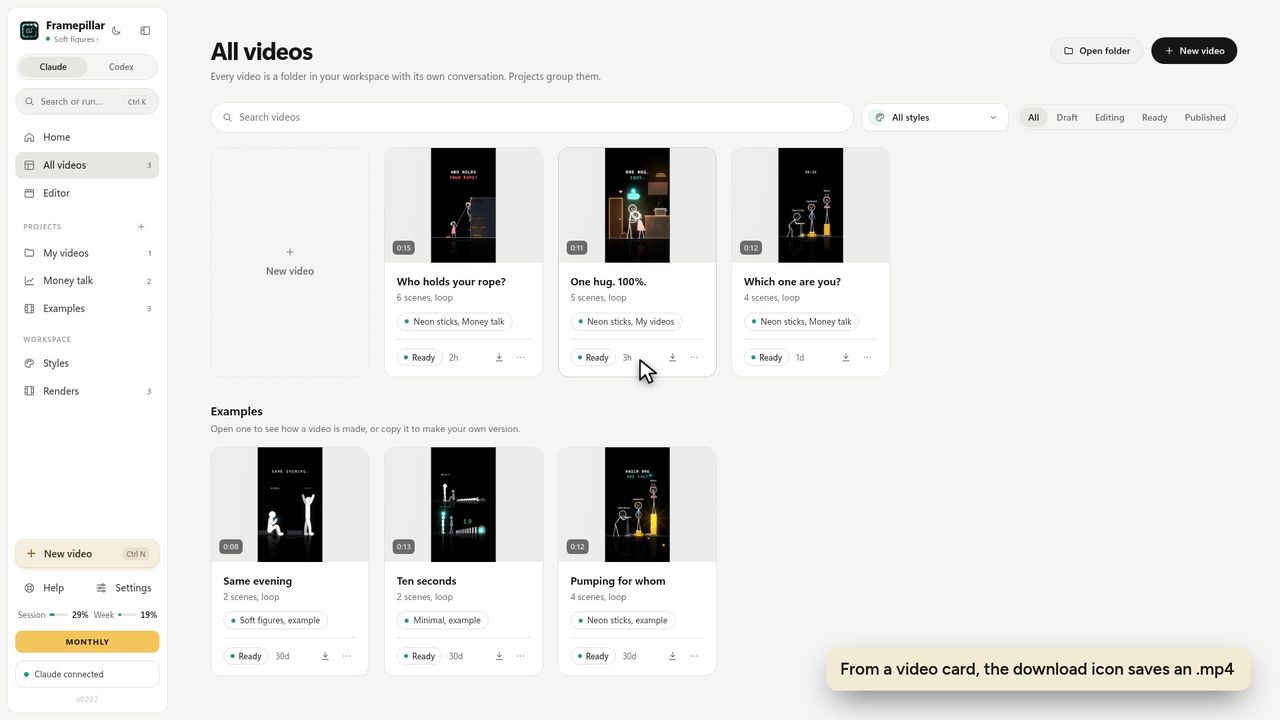
10From a video card, the download icon saves an .mp4
Ready to make your own?
FramePillar turns one sentence into an animated short or a YouTube video, with your own Claude or ChatGPT plan. Your first 3 days are free.
No credits and no per-video charges. Cancel any time from your account.