
Guide · Your first video · Lesson 5
Pick and change a style
Try the 27 styles, set a default and make your own look.
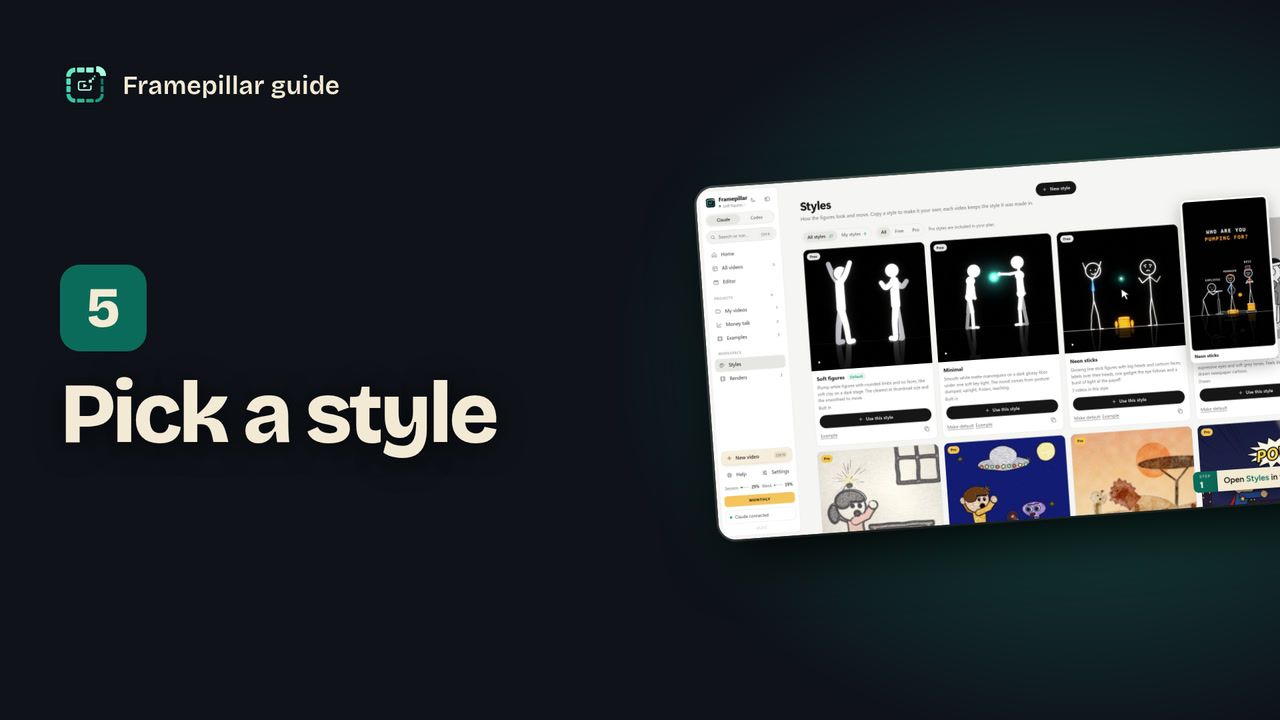
Step by step
- Open Styles in the sidebar. Rest the pointer on a picture to see it move.
- Filter by All, Free or Pro. Every Pro style is included in your plan.
- Click Use this style on a card, pick the project, and New video opens in that style. Or click Make default so new videos start in it.
- To set a style for one project, open the project and change New videos start in.
- In New video → Look you can also click the style button and pick from the list.
- To make your own, click New style, give it a name, describe the look and add reference pictures if you have them. Click Create style and Claude draws a sample.
Every step, in pictures
Screens from the video, in order. Click one to see it full size.
-
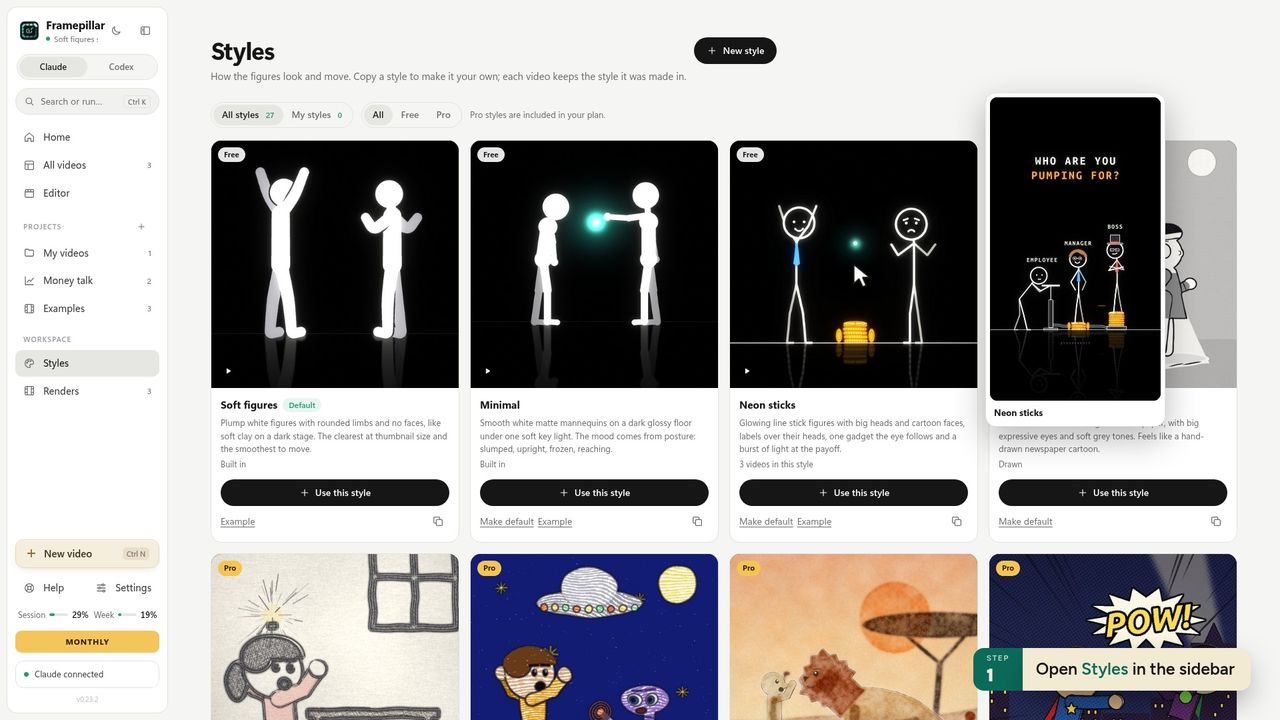
1Open Styles in the sidebar -
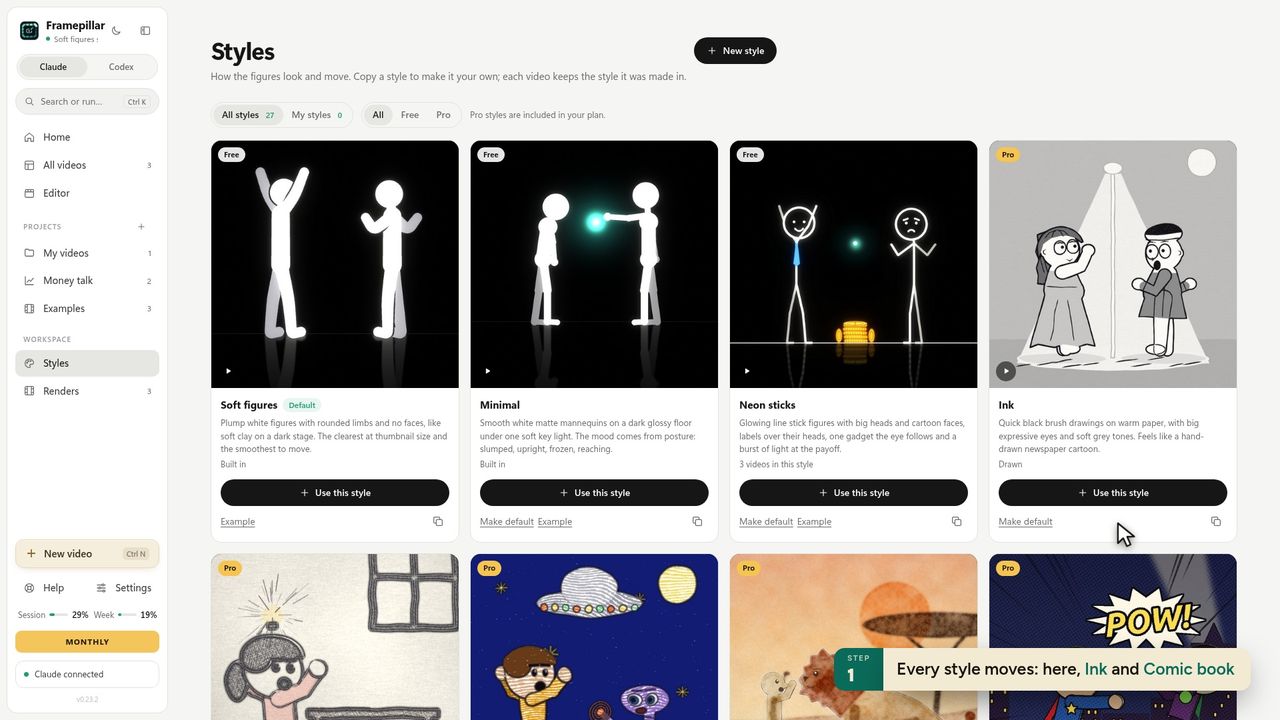
2Every style moves: here, Ink and Comic book -
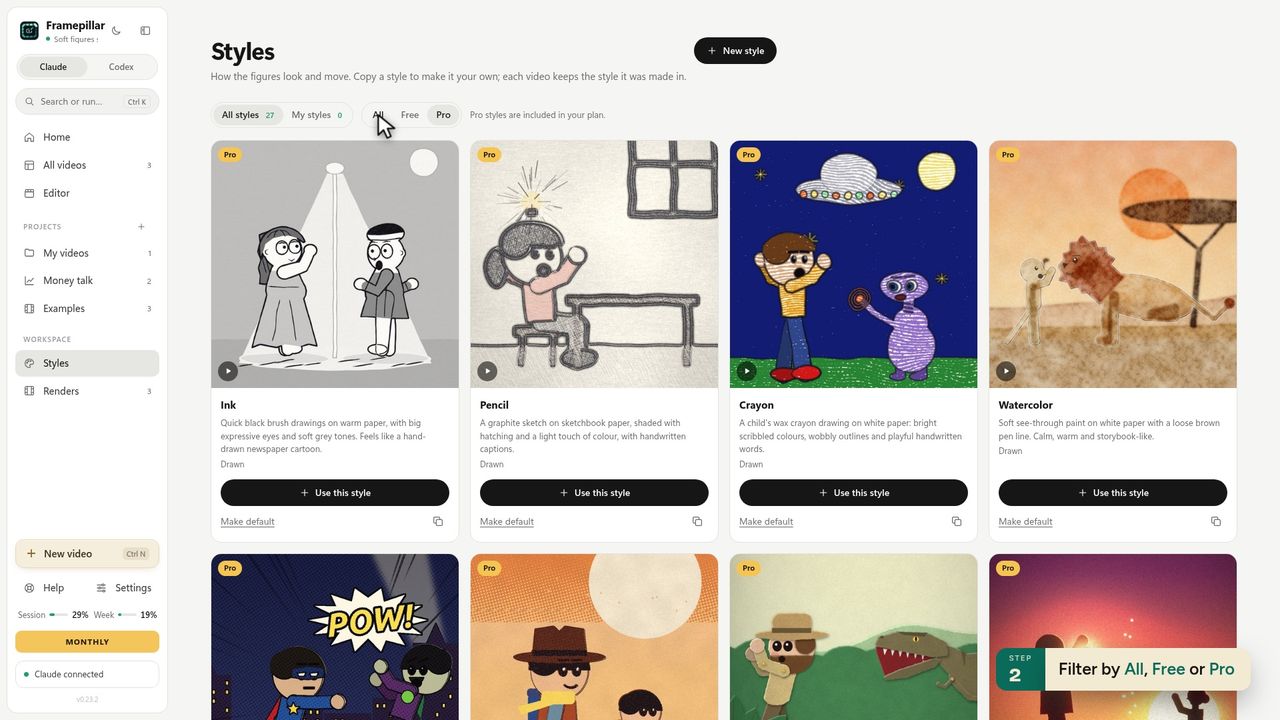
3Filter by All, Free or Pro -
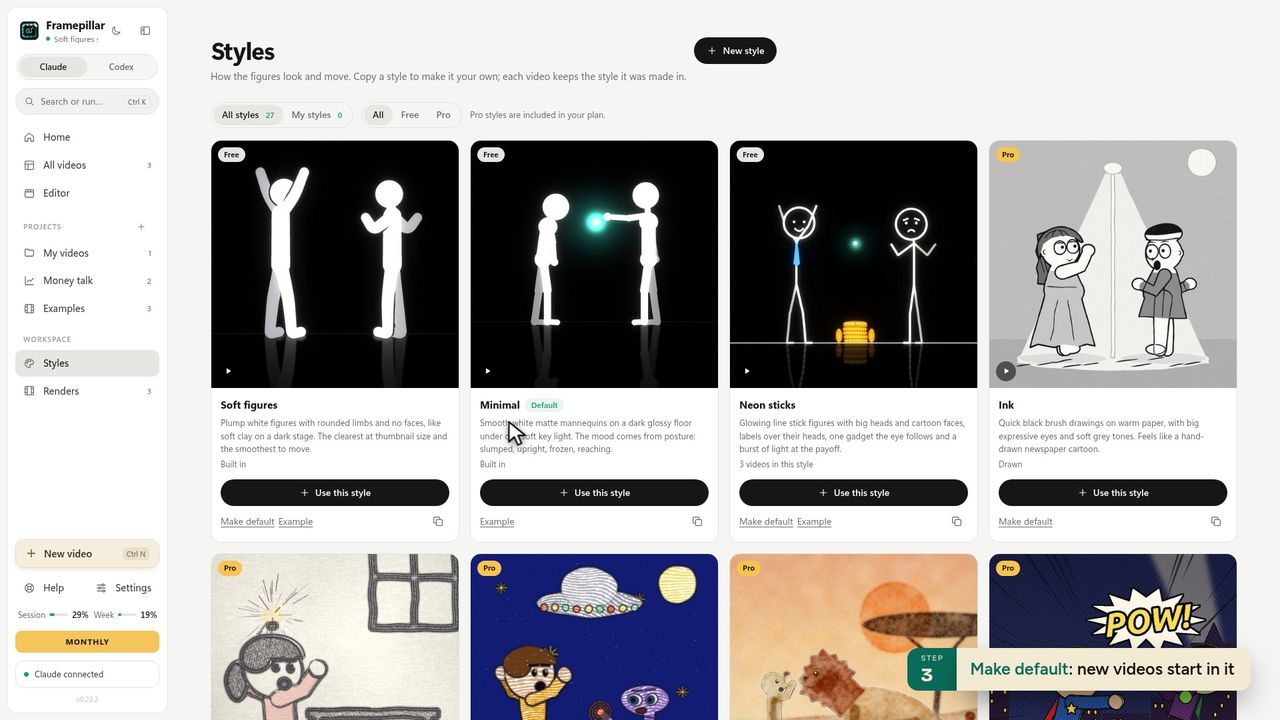
4Make default: new videos start in it -
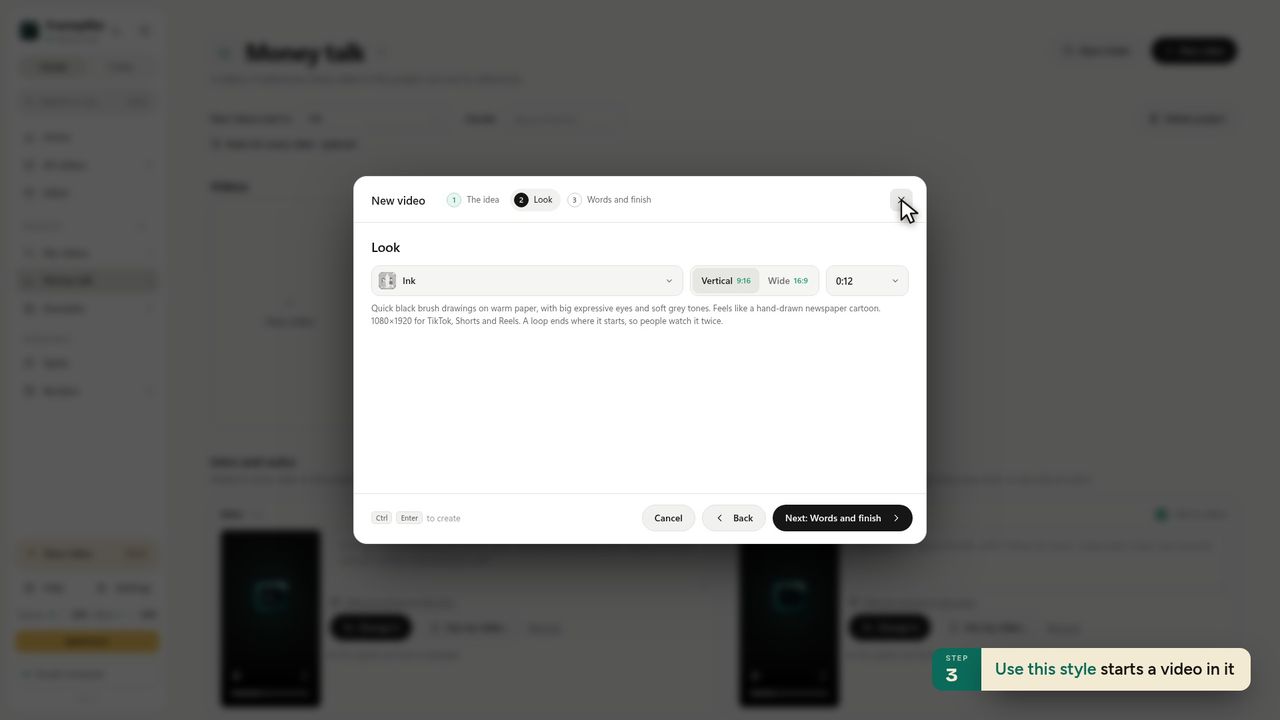
5Use this style starts a video in it -
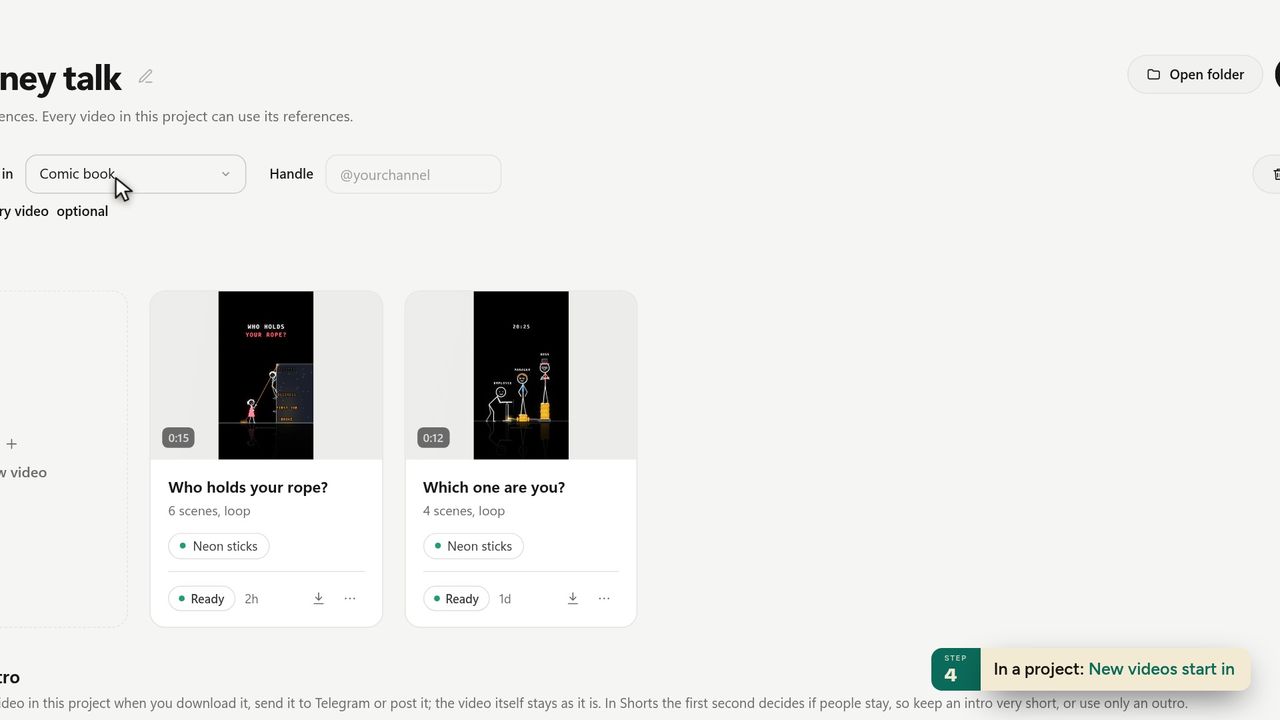
6In a project: New videos start in -
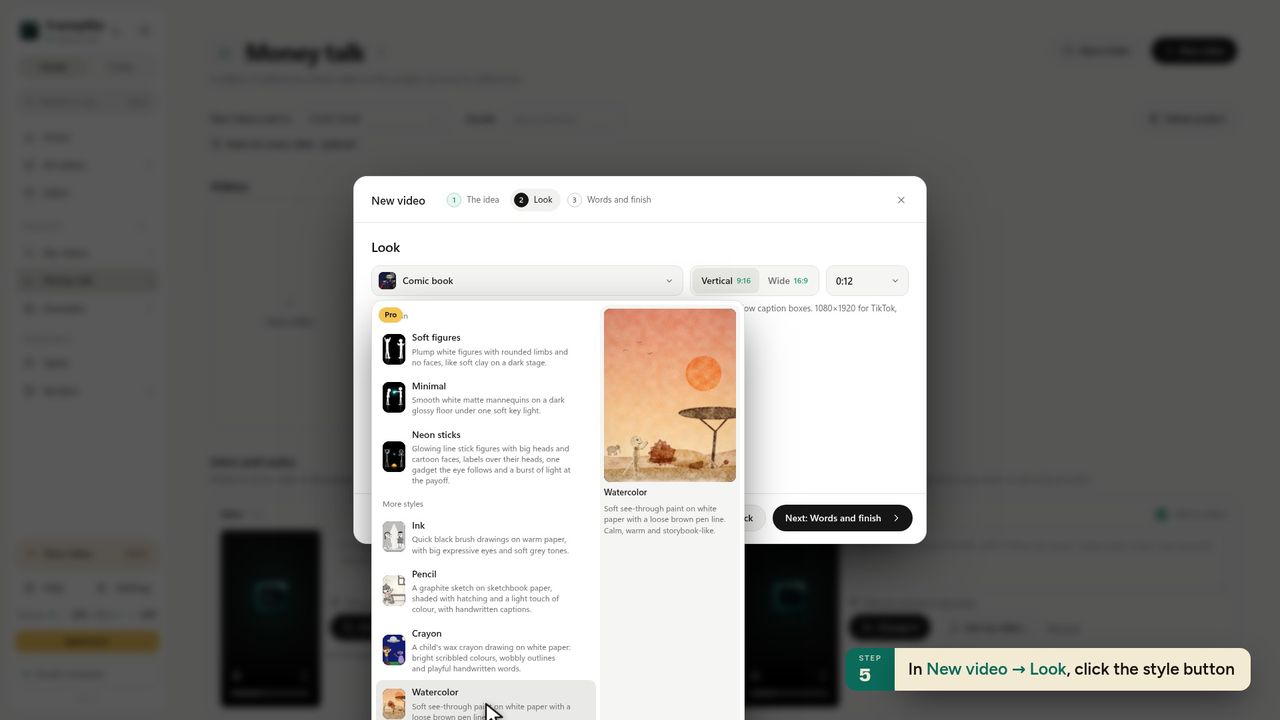
7In New video → Look, click the style button -
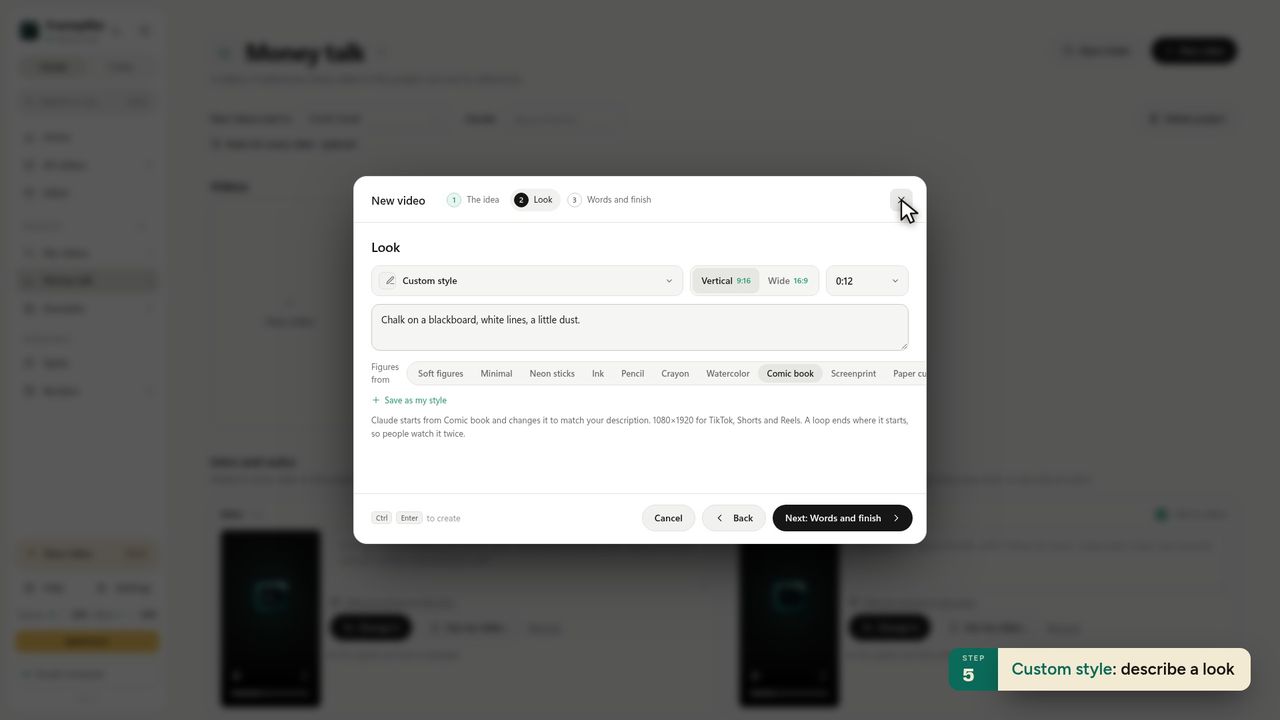
8Custom style: describe a look -
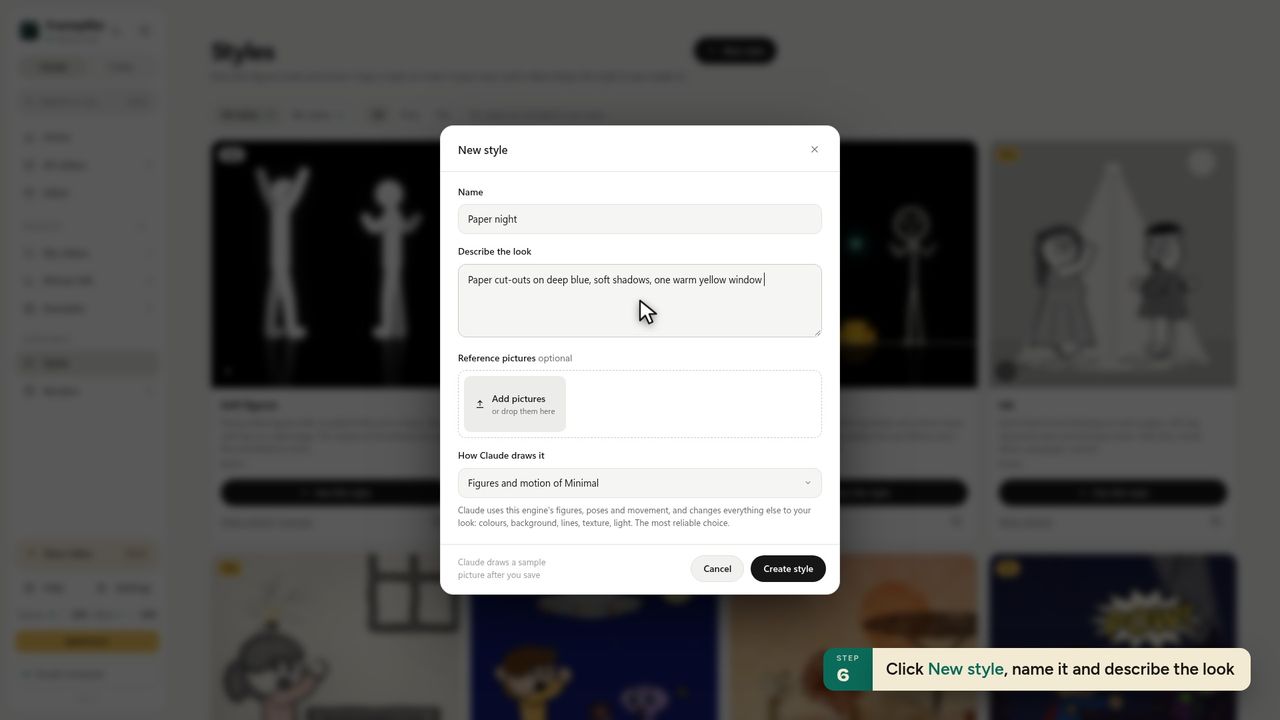
9Click New style, name it and describe the look -
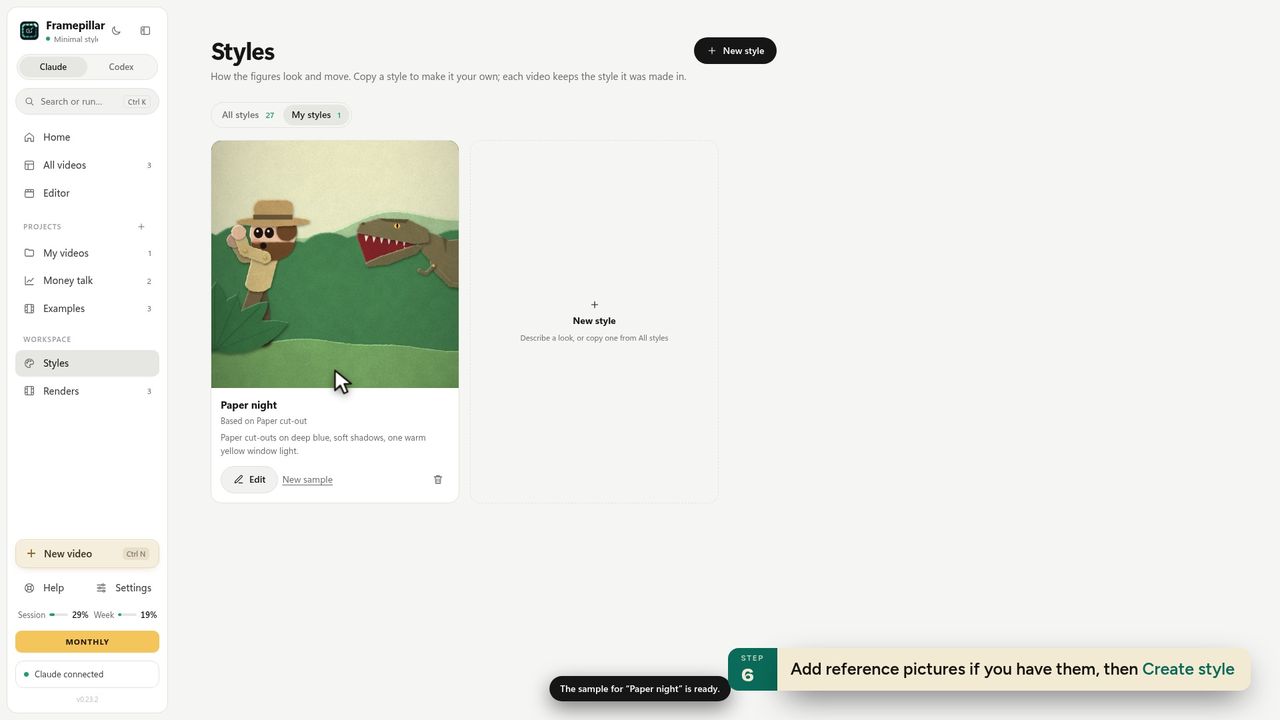
10Add reference pictures if you have them, then Create style -
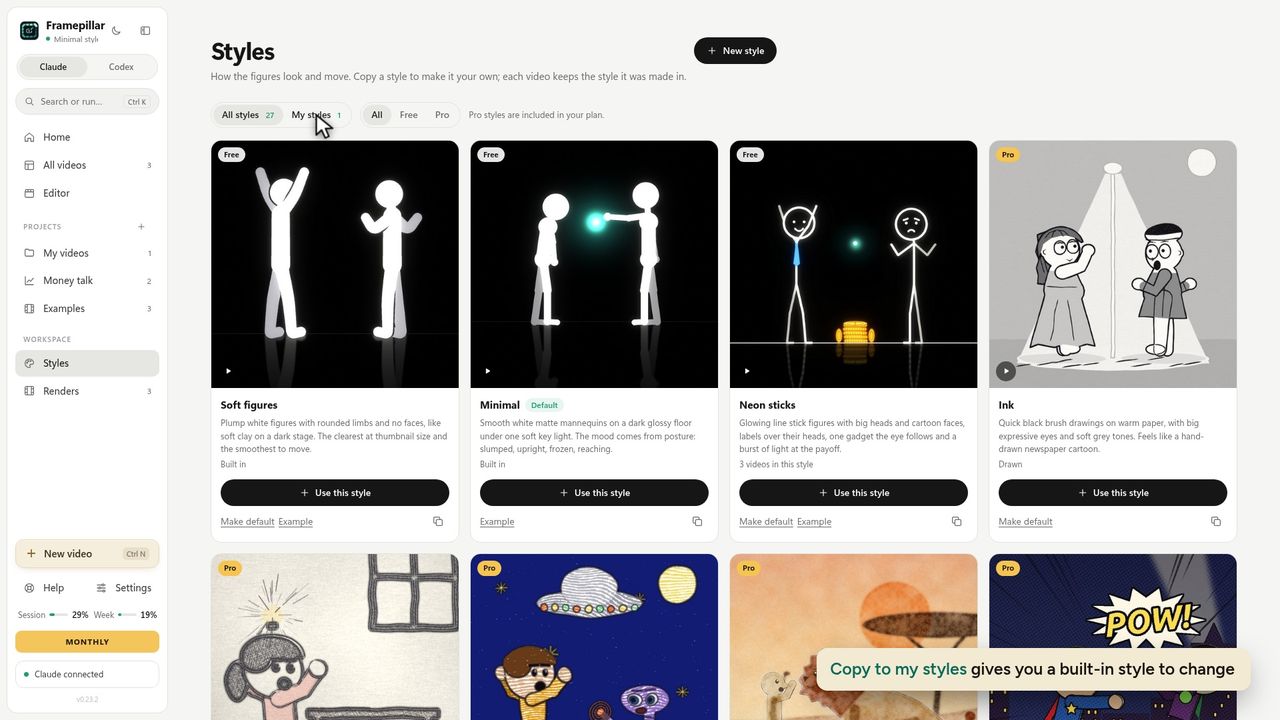
11Copy to my styles gives you a built-in style to change
Ready to make your own?
FramePillar turns one sentence into an animated short or a YouTube video, with your own Claude or ChatGPT plan. Your first 3 days are free.
No credits and no per-video charges. Cancel any time from your account.